Samsung settings that can make your Galaxy battery last longer

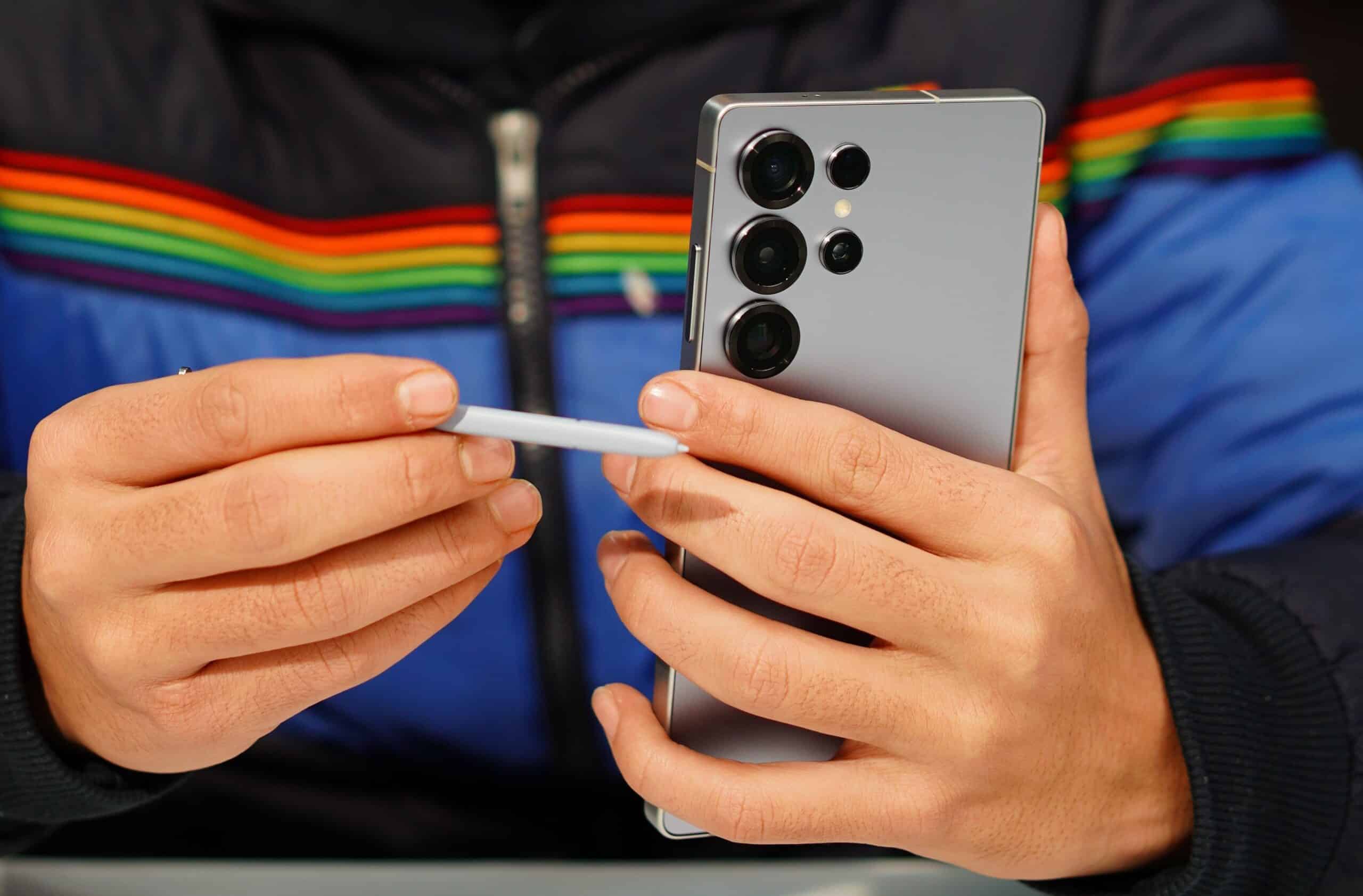
A new Samsung Galaxy phone shouldn’t require a charger by mid-afternoon. If it does, the issue may not be battery size but what the phone is doing in the background. Here are simple steps to improve your Galaxy’s battery life.
Samsung already builds several battery-saving controls into One UI, including adaptive charging, sleeping apps and automatic optimisation. None will magically double endurance, but together they can cut unnecessary drain and reduce the time your battery spends sitting at 100% charge. Samsung itself says brightness, weak signal, background activity and location services are among the biggest variables affecting battery use.
Here are the changes worth making first.
- 1. Turn on Adaptive battery protection
- 2. Put forgotten apps to sleep
- 3. Let Adaptive Brightness do the boring work
- 4. Check what is actually draining the battery
- 5. Be selective with location and background access
- 6. Use Power saving when you actually need it
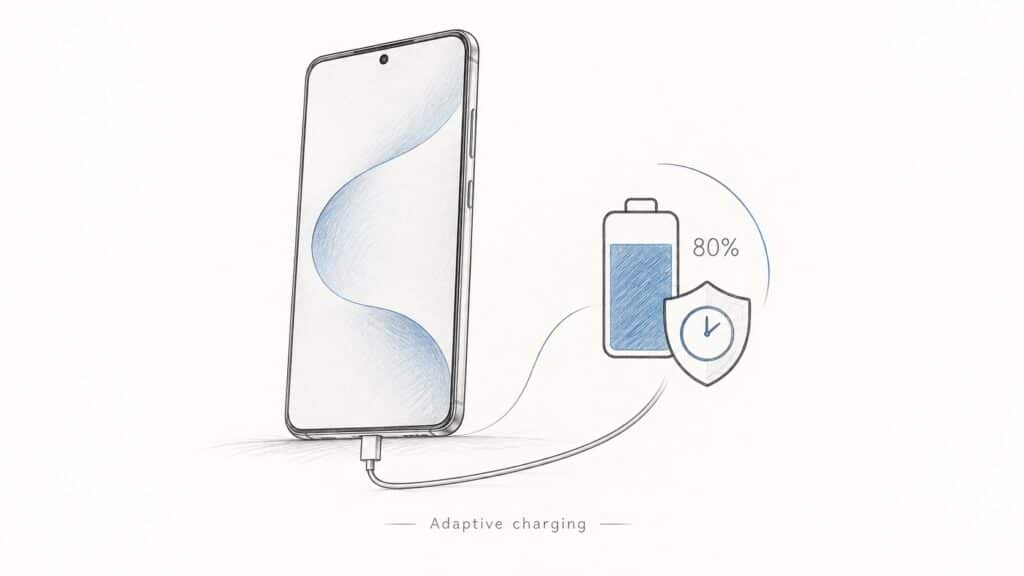
1. Turn on Adaptive battery protection
Go to Settings → Battery → Battery protection, then choose Adaptive.
On compatible Galaxy phones, Adaptive mode keeps charging limited while you sleep, then switches back before you wake. Samsung says prolonged time at 100% can accelerate battery wear, while its Maximum setting offers even stronger protection by capping the charge level.
Use Maximum if longevity matters more than squeezing every last hour out of a charge. Adaptive is the better everyday compromise.
2. Put forgotten apps to sleep
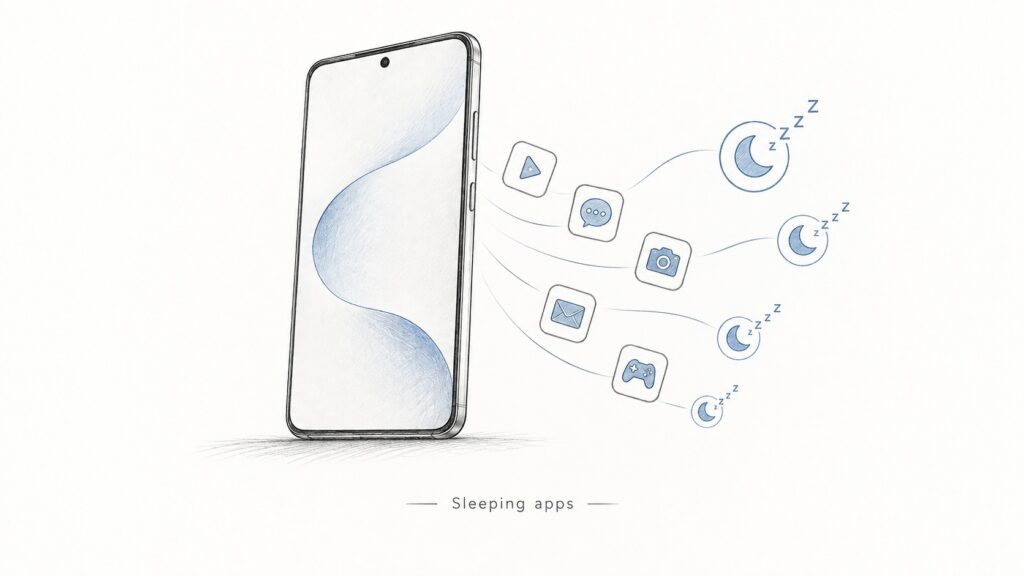
Open Settings → Battery and device care → Battery → Background usage limits.
Samsung lets you place rarely used apps in Sleeping or Deep sleeping lists. Deep-sleeping apps cannot run in the background at all and only become active when opened manually.
Do not use this blindly for messaging, banking or other apps that need instant notifications.
Read more: Galaxy Unpacked July 2026: Everything you need to know
3. Let Adaptive Brightness do the boring work
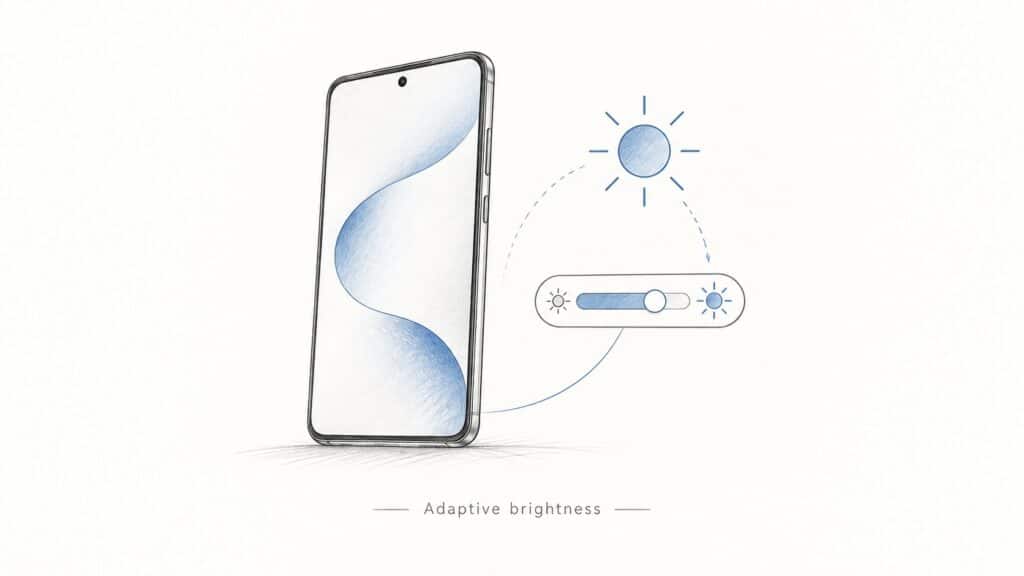
The display is one of the largest power users on any Galaxy phone. Samsung recommends Adaptive Brightness, which adjusts the panel to ambient light instead of keeping it unnecessarily bright all day.
You can also shorten Screen timeout if your phone regularly spends minutes glowing on a desk after you stop using it.
4. Check what is actually draining the battery
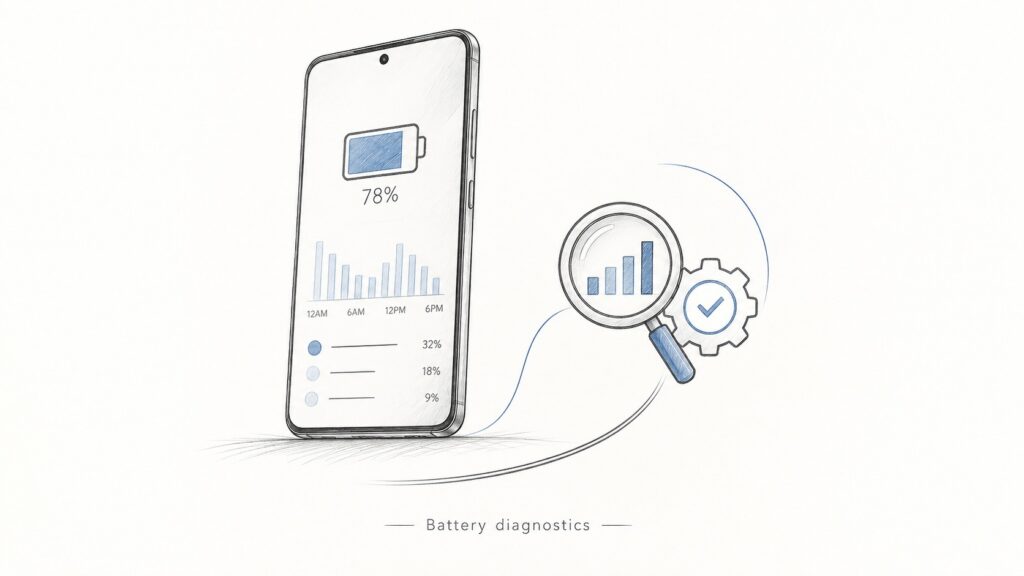
Go to Battery and device care and run Optimise now, then inspect the battery graph.
Samsung’s diagnostics can expose apps using excessive power in the background. That is more useful than indiscriminately disabling features because one badly behaved app can sometimes account for a disproportionate share of drain.
5. Be selective with location and background access
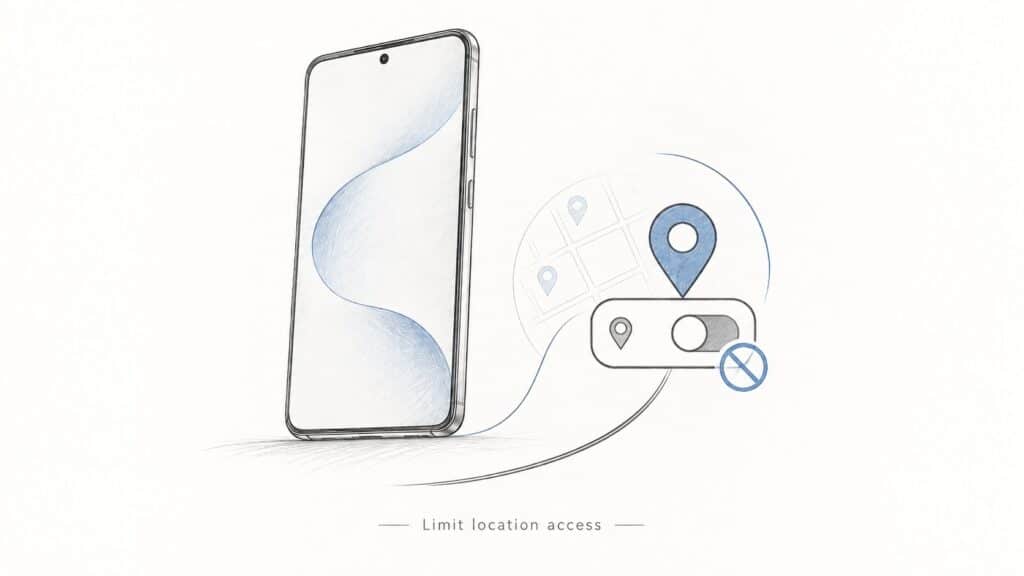
Navigation needs GPS. Your calculator probably does not.
Review permissions for apps that continually request location, background activity or network access. Samsung specifically lists location services and persistent background activity among factors that increase consumption.
The goal is not to switch everything off but to stop apps from using expensive services when they have no good reason to.
6. Use Power saving when you actually need it
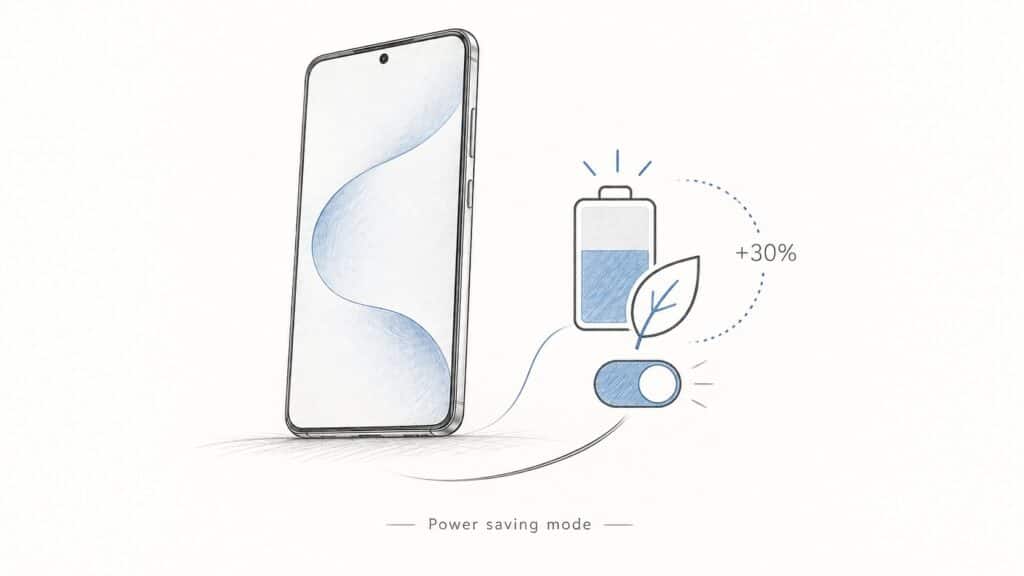
Samsung’s Power saving mode cuts background activity and other power-hungry behaviour when endurance matters more than maximum performance.
That makes it most useful on travel days, during long commutes or when you know a charger will be difficult to find — rather than leaving every restriction enabled permanently.
Read more: Samsung rolls out One UI 9 to Galaxy S26
Battery life and battery health are not the same thing, so sleeping apps and brightness controls help the phone last longer today. Charging protection is designed to keep the battery healthier for months and years to come.