
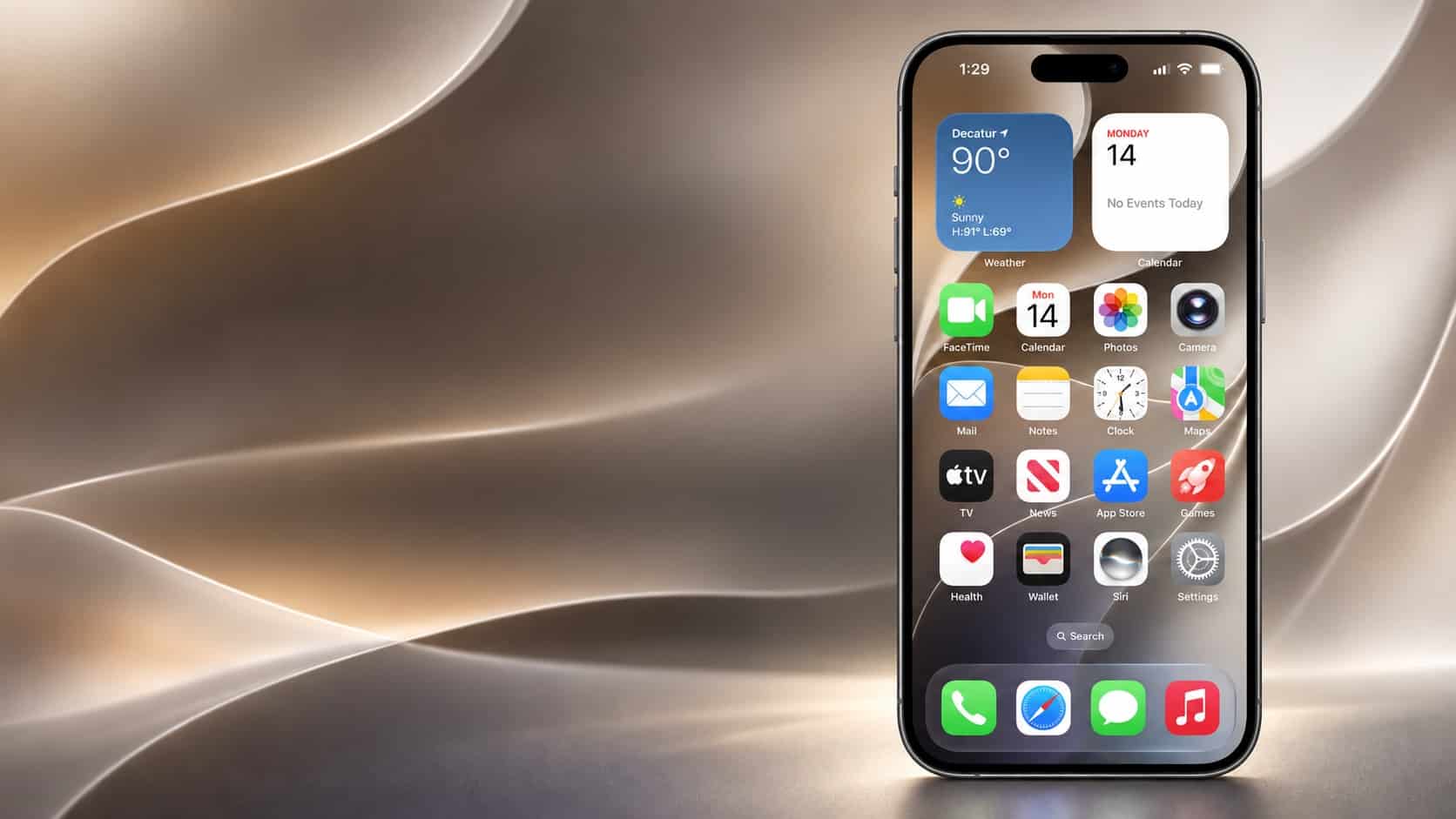
Your iOS 27 update is installed, but a few quick checks can make your iPhone easier to use. Here’s how you start with your apps, screen and alarm settings, and then decide whether to try the new Siri.
You do not need to change every setting or switch on every new feature. Our checklist below focuses on everyday essentials, with optional steps for Siri and other Apple devices.
A little patience also helps: your iPhone can continue finishing update-related work after the installation screen disappears, so its first few hours are not necessarily a fair test of battery life.
- 1. Give iOS 27 time to finish in the background
- 2. Update your everyday apps
- 3. Check for a mobile-network update
- 4. Make the screen easier to read
- 5. Set your alarm volume separately
- 6. Request the new Siri — if you want it
- 7. Check your other Apple devices
1. Give iOS 27 time to finish in the background
Connect your iPhone to Wi-Fi and leave it charging when convenient. Downloads and background setup can continue while you are not using it.
Temporary extra battery use or warmth can follow an update. Apple recommends waiting a few days before reassessing battery life.
Check Settings → Battery for an Ongoing iOS Update message. If battery life remains unusually poor after several days, use the same screen to see which apps are consuming power.
Read more: iOS 27 timings: when Apple’s update releases in Asia
2. Update your everyday apps
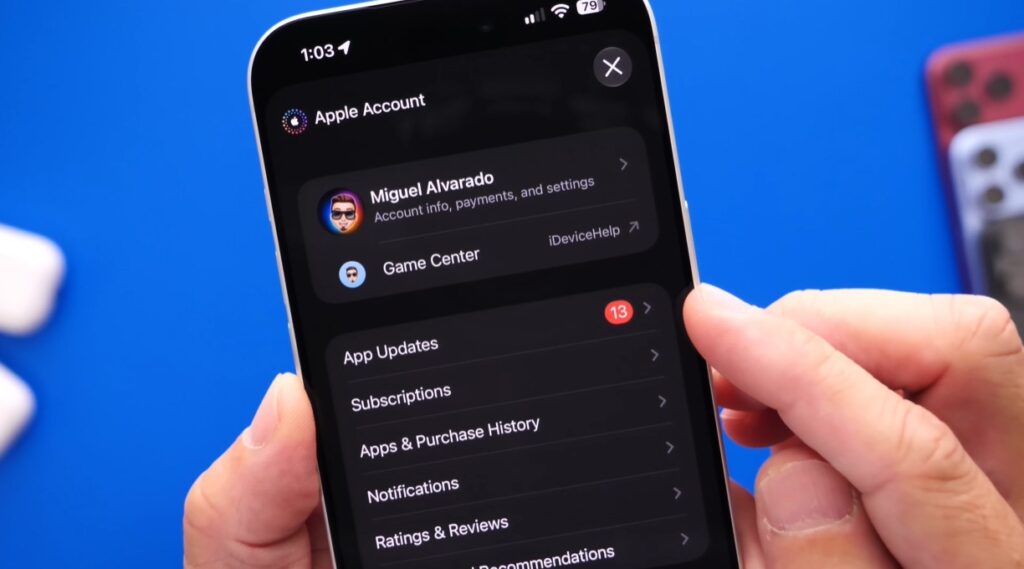
Open App Store → your account photo → App Updates → Update All, following Apple’s instructions.
Updating iOS does not mean every downloaded app is already running its newest version. App updates may include fixes and support for the new software.
Once they finish, open the apps you rely on most, such as banking, messaging and transport. Check that you can still sign in before you need them.
3. Check for a mobile-network update
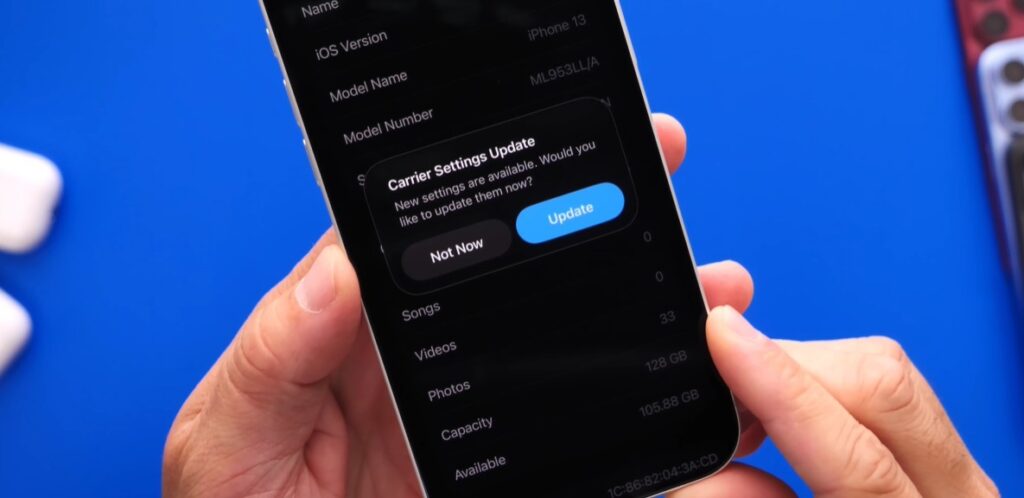
Go to Settings → General → About while connected to Wi-Fi or mobile data. If an update prompt appears, follow it.
These small updates come from your mobile operator. They can improve network connectivity or add support for services such as Wi-Fi Calling, according to Apple.
If no prompt appears, there is nothing to install through this check.
4. Make the screen easier to read
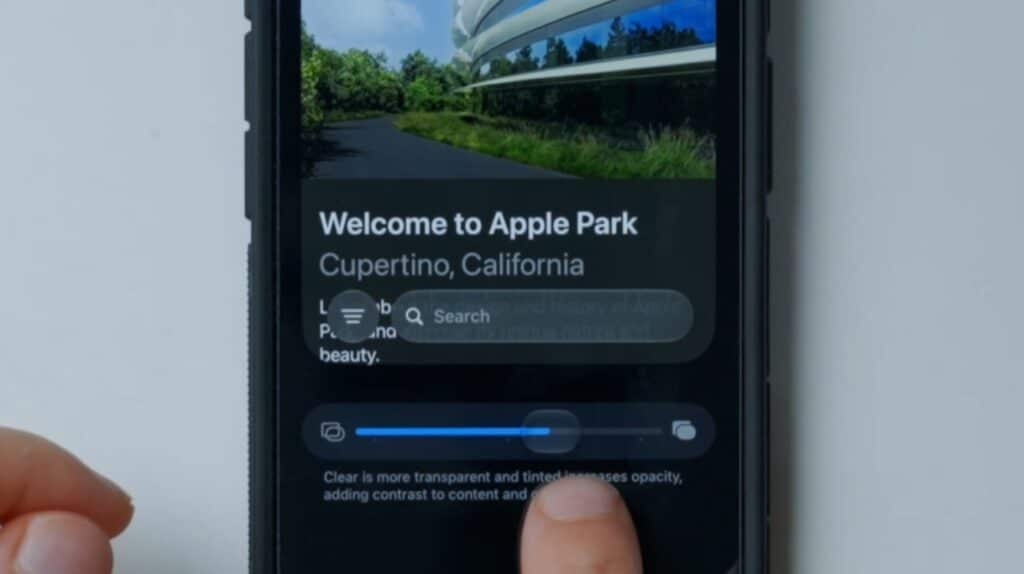
Open Settings → Appearance → Liquid Glass. Move the slider towards the more tinted end if transparent menus make the text difficult to read.
Liquid Glass is Apple’s name for the see-through appearance of menus and controls. Apple confirms the new slider ranges from clear to fully tinted.
Choose the setting that makes labels and buttons comfortable to read against your wallpaper. You can change it again later.
5. Set your alarm volume separately
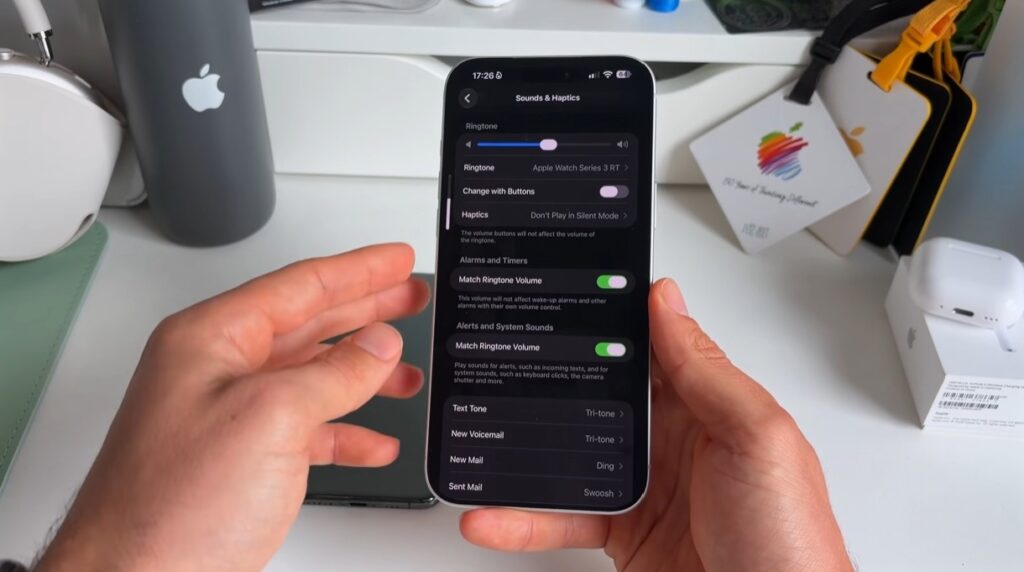
Open Settings → Sounds & Haptics and look for the alarm and timer volume controls. iOS 27 lets you adjust these separately from your ringtone, as shown in this video walkthrough.
This is useful if you want quiet incoming calls but a louder morning alarm.
After changing the volume, set a test alarm for a minute ahead. Listening to it is the simplest way to check that your chosen level is loud enough.
6. Request the new Siri — if you want it
Go to Settings → Siri → Try Siri AI (Beta) and follow the prompts. The new assistant requires a waitlist request; installing iOS 27 does not automatically give you access.
Apple’s eligibility guidance lists iPhone 15 Pro and Pro Max, iPhone 16 models and later, and iPhone Air. The ordinary iPhone 15 and 15 Plus are not included.
At launch, Siri AI is available in English, with the device and Siri languages needing to match. Regional restrictions also apply, including no availability on iPhone in the EU at launch.
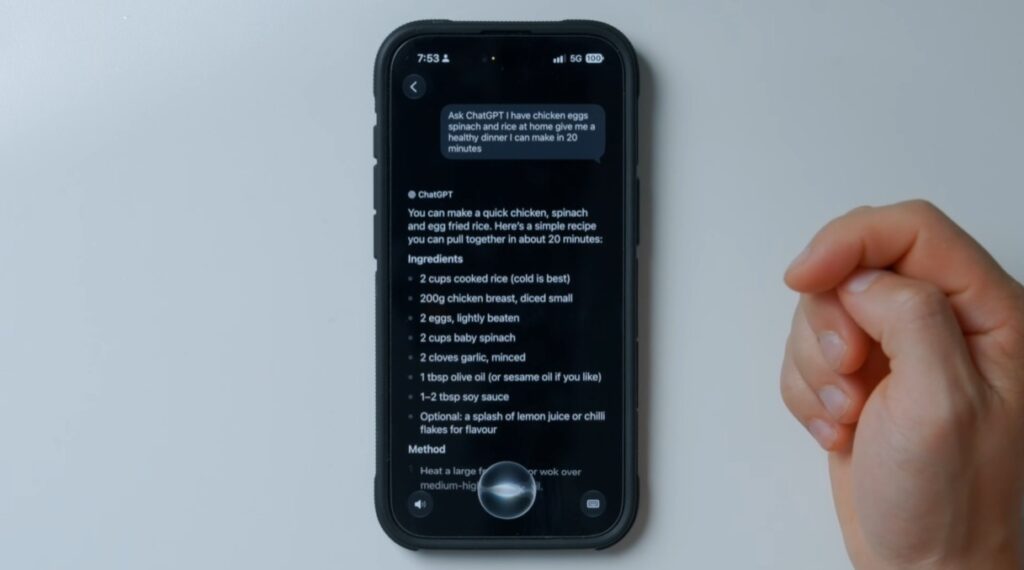
If the option is missing, check eligibility first. Joining the queue does not guarantee immediate access.
Dive deeper: iPhone Duo hands-on: perks, flaws and $1,999 trade-offs
7. Check your other Apple devices
If you own these devices, check for their available updates too:
- Apple Watch: On your iPhone, open Watch → My Watch → General → Software Update. Keep the watch charging, at least 50% charged and near your phone, as Apple instructs.
- HomePod: Open Home → three-dot menu → Home Settings → Software Update.
- Apple TV: On the television, open Settings → System → Software Updates → Update Software. Apple’s instructions place this check on the Apple TV itself.
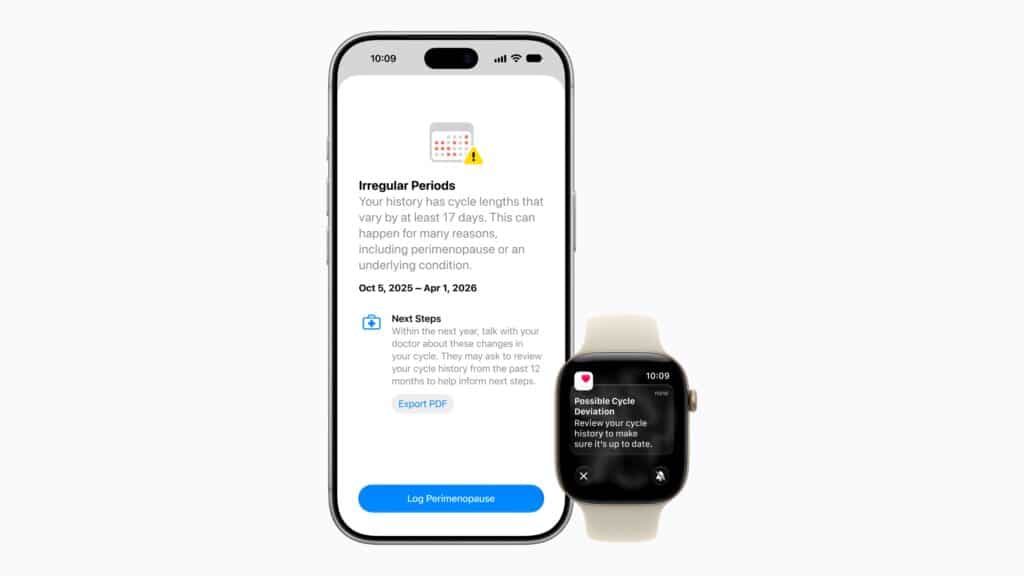
Install the version offered for your device. Older models may receive different software from newer ones.
Read more: Apple rolls out iPhone Duo, 18 series, AirPods 5 and new Apple Watch