
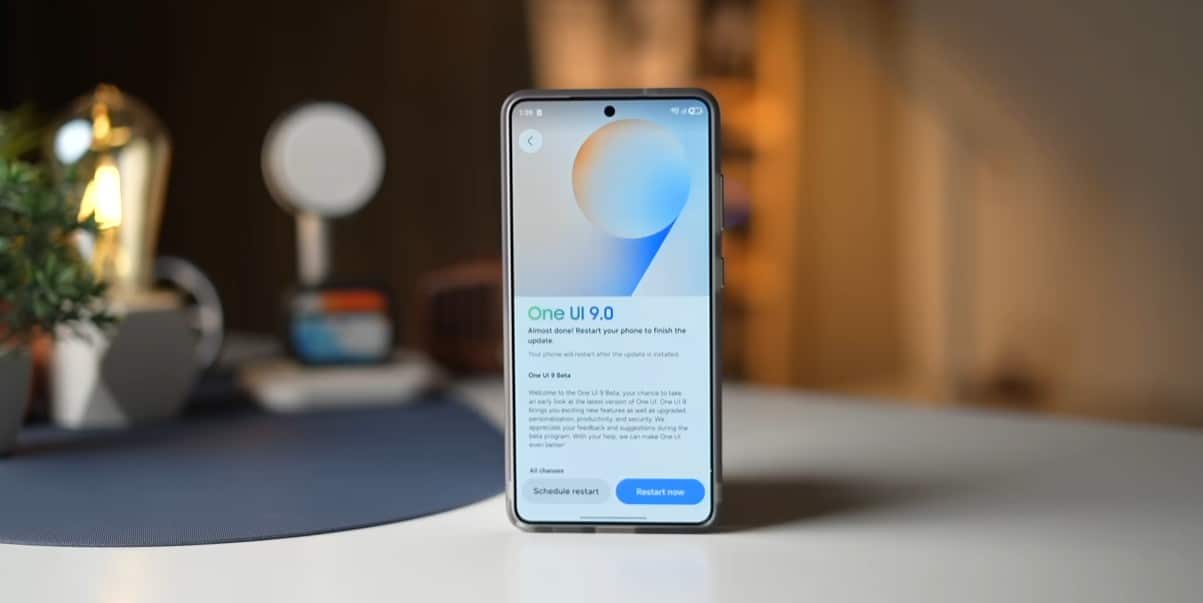
Samsung has rolled out its stable One UI 9 for the Galaxy S26, S26+, and S26 Ultra, but installing the update does not automatically switch on everything worth trying. Some of its most useful changes, reviewed by YouTube channel TechnoProz, are optional, buried in menus or tucked inside Samsung’s Good Lock suite.
That includes multi-finger gestures, a live internet-speed meter, and Call Brief. Other features, such as Google’s Motion Assist, arrive alongside Android 17 and updated Google Play Services rather than being Samsung-only tools.
One warning before changing everything: features can vary by phone, region and carrier. Samsung explicitly notes those differences in its One UI 9 support documentation, and Privacy Display remains hardware-dependent on the Galaxy S26 Ultra.
Start with search, gestures and connectivity
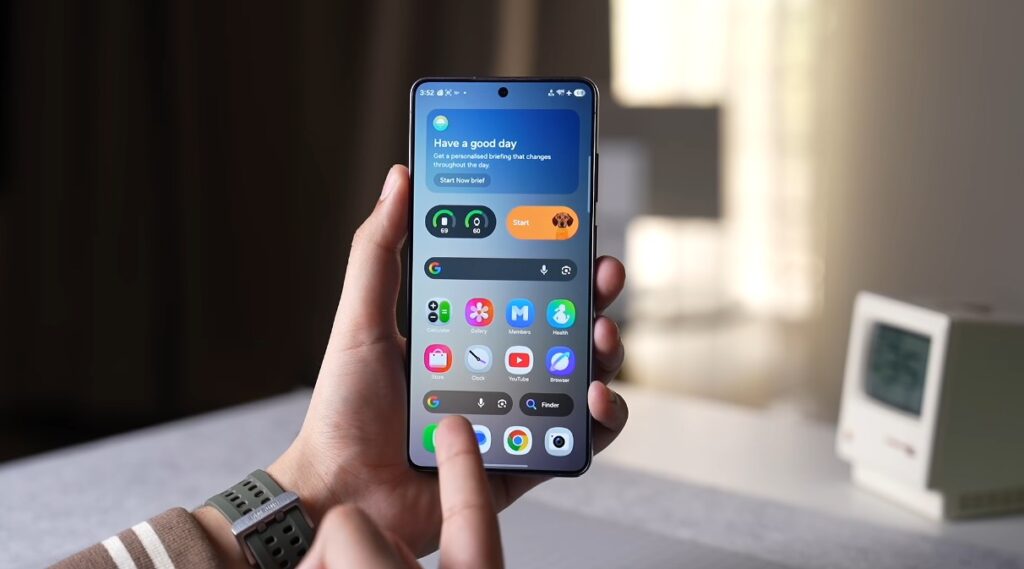
1. Choose what Home Search actually searches
Long-press an empty home screen to open settings. One UI 9 lets supported builds use Samsung Finder, Google search, or neither.
Though modest, Finder searches for device content, whereas Google searches the web. The decision alters the search box’s purpose. The four options were revealed in One UI 9 versions and eventually added to Galaxy software.
2. Turn on multi-finger gestures
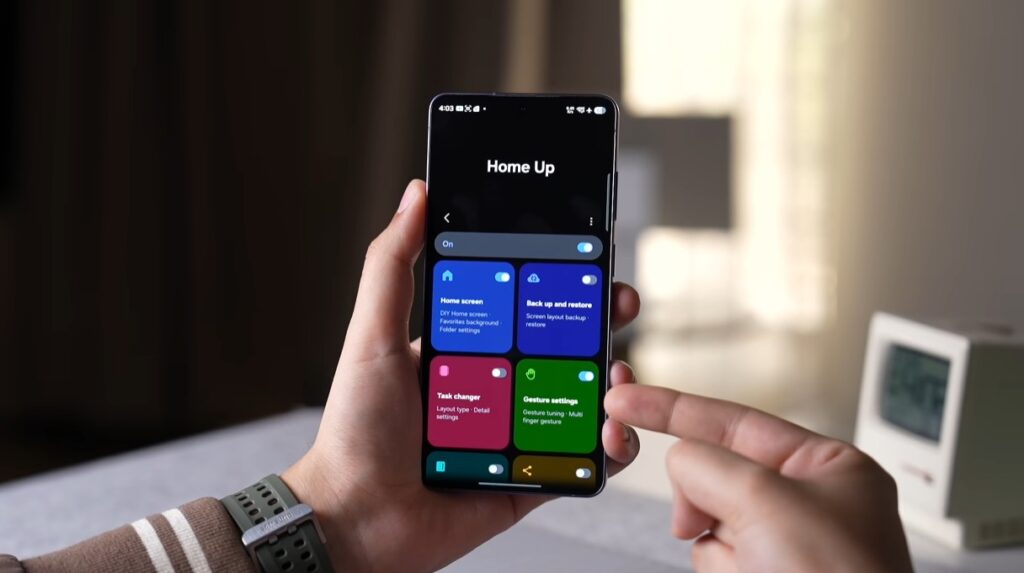
Install or update Good Lock → Home Up and look for Multi-finger gestures.
One UI 9’s Home Up module supports gestures involving up to five fingers, including assigning a three-finger movement to a screenshot or using gestures to switch apps. Android Authority confirmed the feature on the updated module.
3. Put live internet speed in status bar
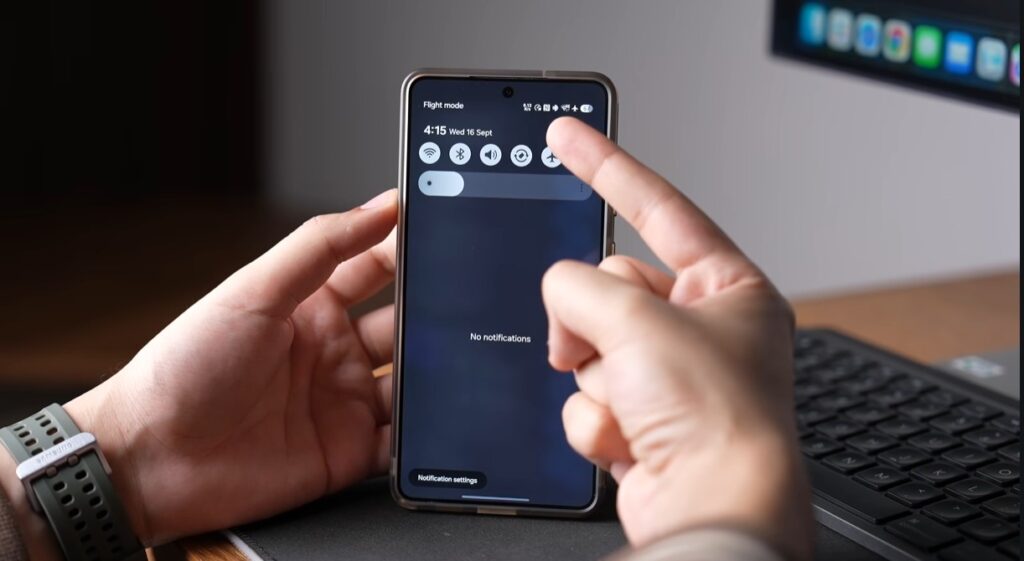
Go to Good Lock → QuickStar → Indicator Icons and enable the network-speed option.
This is one of One UI 9’s genuinely useful small additions. QuickStar can show real-time network throughput directly in the status bar, removing the need for a third-party speed-monitoring app.
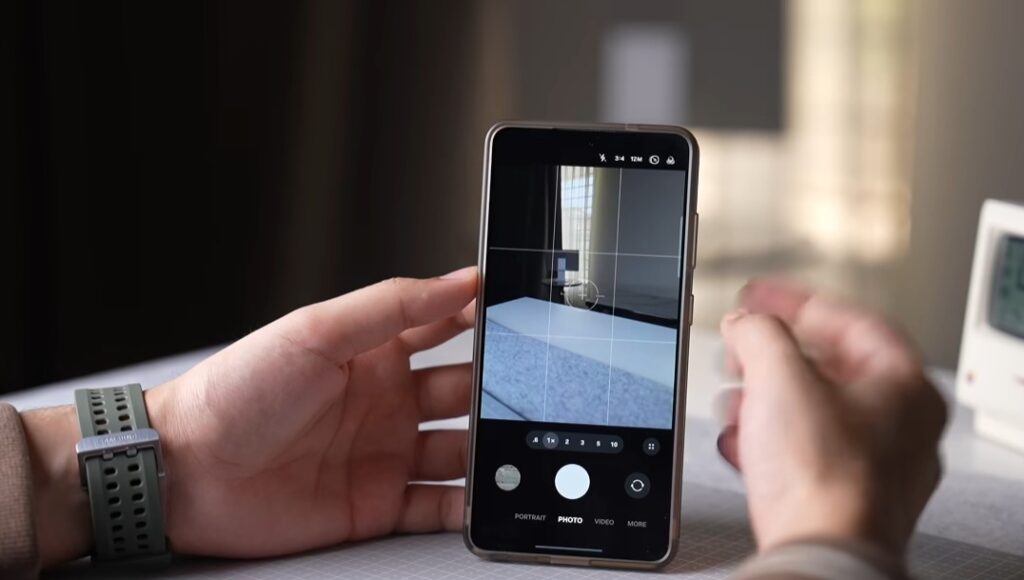
4. Personalise Camera Assistant
Open Good Lock → Camera Assistant and check the indicator customisation options.
Camera Assistant can change elements of Samsung’s camera interface and indicators. This feature is better treated as a Good Lock customisation worth revisiting after the update, rather than as an entirely new One UI 9 invention — some indicator controls existed before the stable One UI 9 release.
5. Stop selected apps from reaching Internet
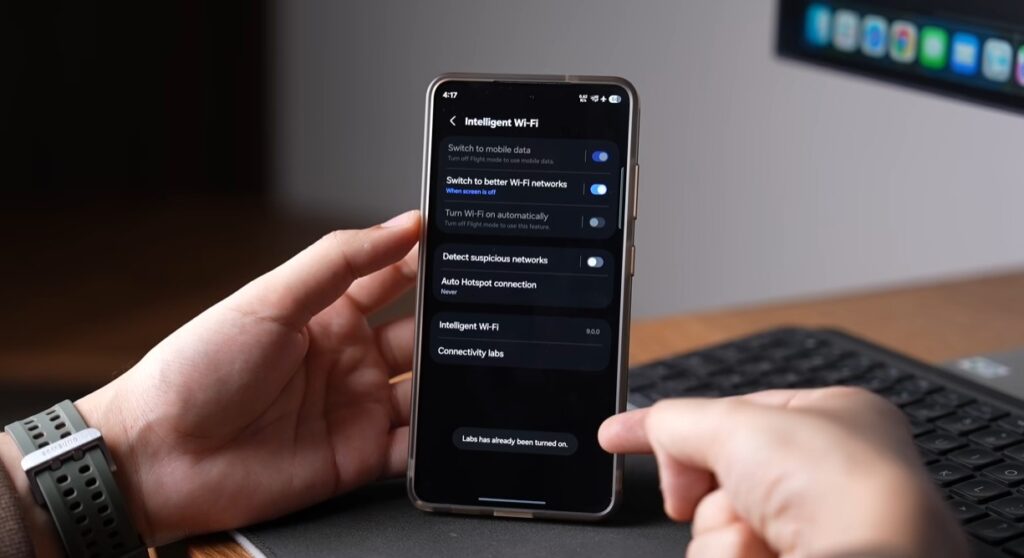
Open Settings → Connections → Wi-Fi → Intelligent Wi-Fi → Connectivity Labs, then look for its network-management controls.
The newer Connectivity Labs tools let you block individual apps from network access, either permanently or for a chosen period. That is useful for apps you want to keep installed without allowing them to communicate freely in the background.
Read also: Apple iOS 27 vs Samsung One UI 9: Which feels faster and looks better
Switch on features you’ll actually notice
6. Try My FanCam on existing video
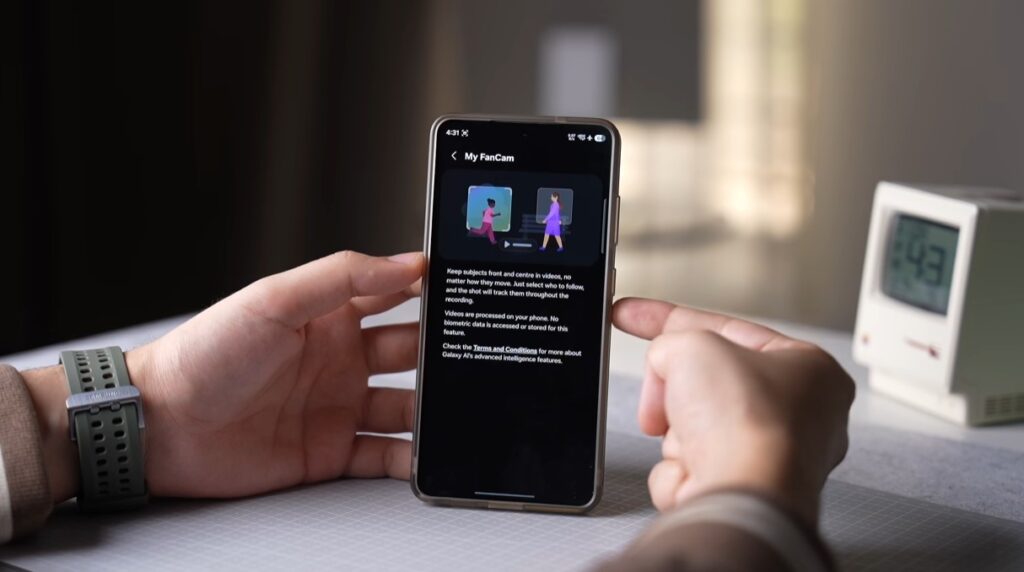
Open a suitable video in Gallery and look for My FanCam among the editing options.
The Galaxy AI tool automatically selects a subject after recording and reframes the footage around them, eliminating the need for users to keep a person centred while filming. Samsung says it can turn a wide event video into a subject-centred clip in a variety of aspect ratios.
This is potentially useful for situations where the person you wanted to film did not conveniently stay in the middle of the frame.
7. Make Privacy Display less aggressive
If you’re a Galaxy S26 Ultra owner, consider revisiting Settings → Display → Privacy Display after updating your device.
Samsung Privacy Display narrows viewing angles, making sensitive content difficult to read beside you. PiP content can now be privacy-filtered without forcing the Home screen into the same mode in One UI 9.
Read more: Samsung introduces Galaxy S26 series with built-in Privacy Display
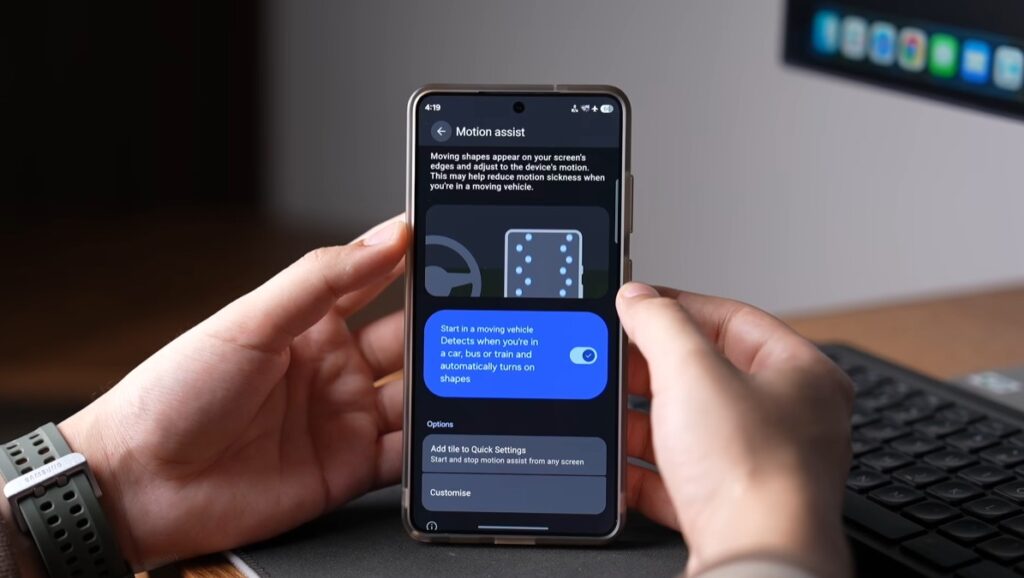
8. If your phone makes you queasy, enable Motion Assist
Search Settings for Motion Assist, or go to Google → All services → Personal & device safety → Motion Assist.
Google Android 17 adds small moving shapes to the screen edges that react to acceleration, braking, and turns, giving the eyes visual cues that match how the body feels in a moving vehicle.
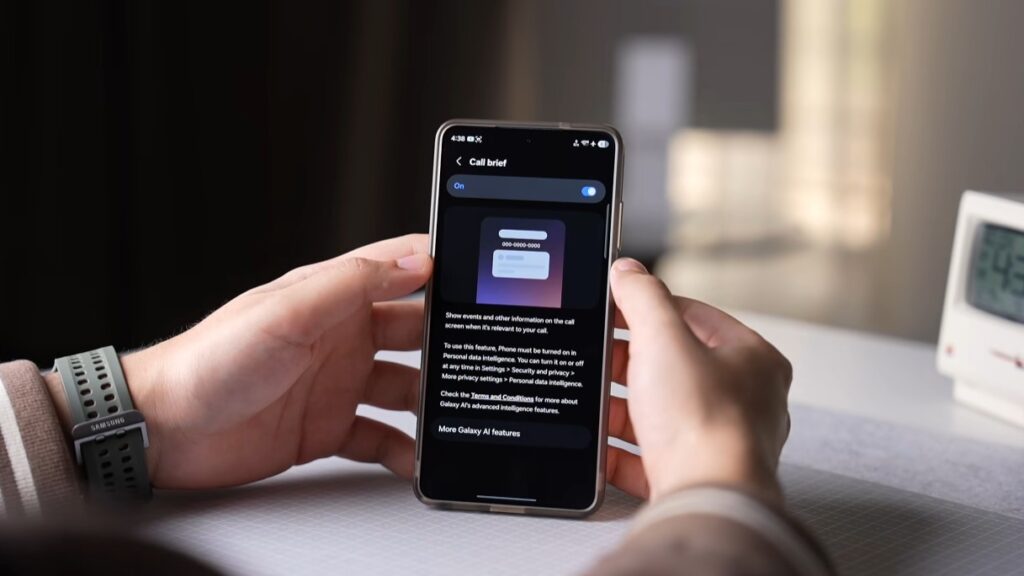
9. Turn on Call Brief
Open Settings → Galaxy AI → Call assist → Call Brief. It is disabled by default on supported devices.
Call Brief provides context when calling. It can display the recipient’s local time and time zone, helping you avoid accidentally calling someone in the middle of the night when calling internationally. It can also find relevant shared calendars.
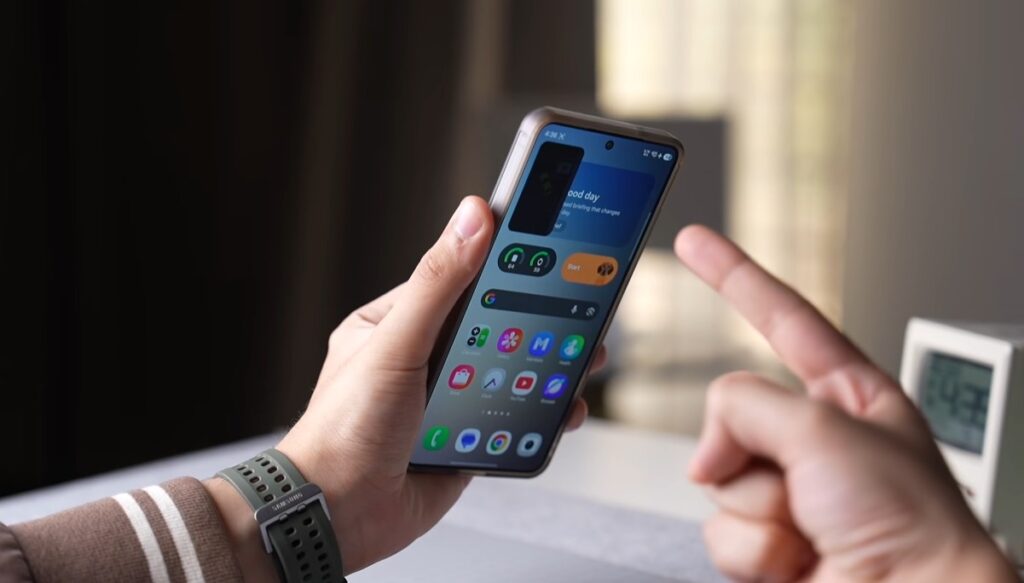
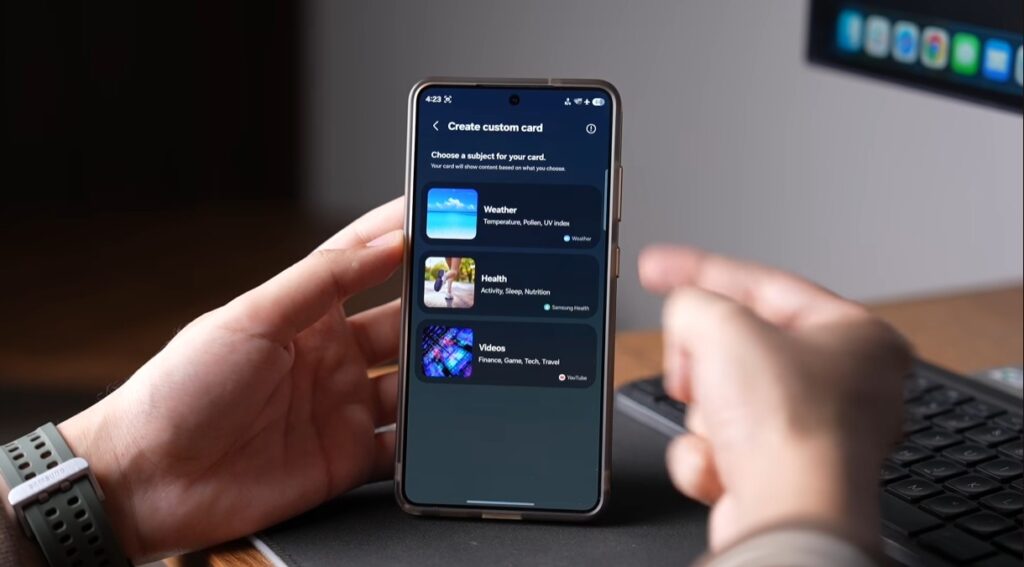
10. Build your own Now Brief
Go to Settings → Galaxy AI → Now Brief and customise the cards rather than accepting Samsung’s default mix.
One UI 9 allows personalised cards covering areas such as weather, health and video content. Samsung’s own rollout material confirms that users can create health, weather and video cards, so the daily briefing concentrates on information they actually want.
That is worth doing because Now Brief becomes considerably less useful when it is treated as an automatically generated feed instead of a dashboard.